
Appearance
Creating an Order
Follow these steps to create a new certificate order.
Step 1: Start a New Order
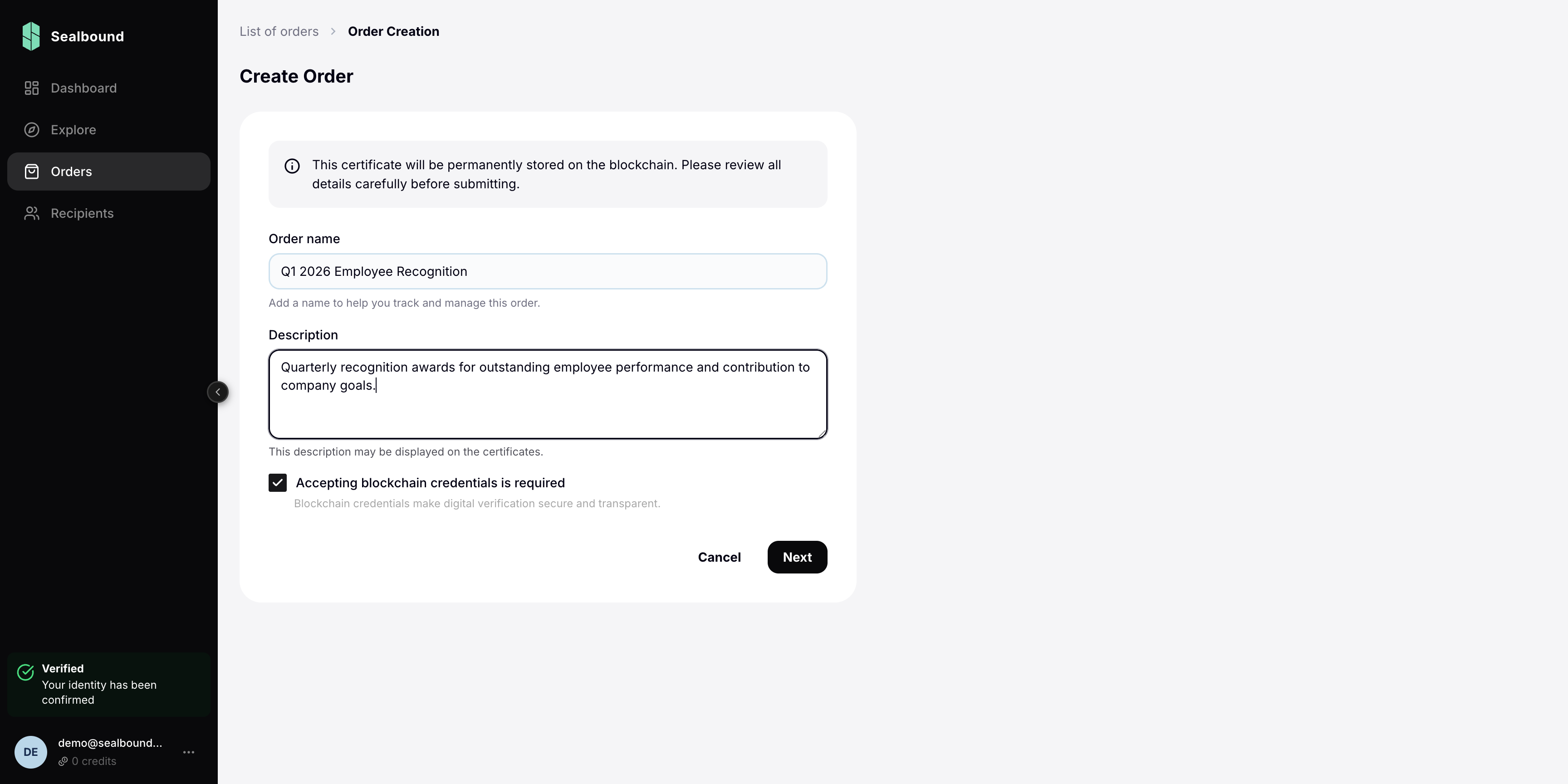
- Navigate to Orders in the sidebar
- Click the Create Order button
- Fill in the order details:
- Name — a descriptive title for the order
- Description — optional notes or context
- Blockchain encoding — toggle on to record certificates on the blockchain
Step 2: Add Groups
After creating the order, add one or more groups:
- Click Add Group within the order
- Name the group (e.g., "Gold tier participants")
- Select a certificate template for this group
Step 3: Add Recipients
For each group, add the people who will receive certificates:
- Manual entry — add recipients one at a time
- CSV import — upload a file with recipient data in bulk
Each recipient needs at minimum a name and email address.
Step 4: Review and Confirm
Before issuing, review:
- All groups and their assigned templates
- The recipient list in each group
- Your available credit balance (each certificate costs credits)
Once everything looks good, confirm the order to begin issuance.
Tips
- You can save an order as a draft and come back to it later
- Recipients can be edited or removed before the order is issued
- Make sure your template looks correct before issuing — certificates cannot be modified after issuance